Hello everyone,My name is Bobby. I am from Thailand.

Gripper.vcmx(1.3 MB)

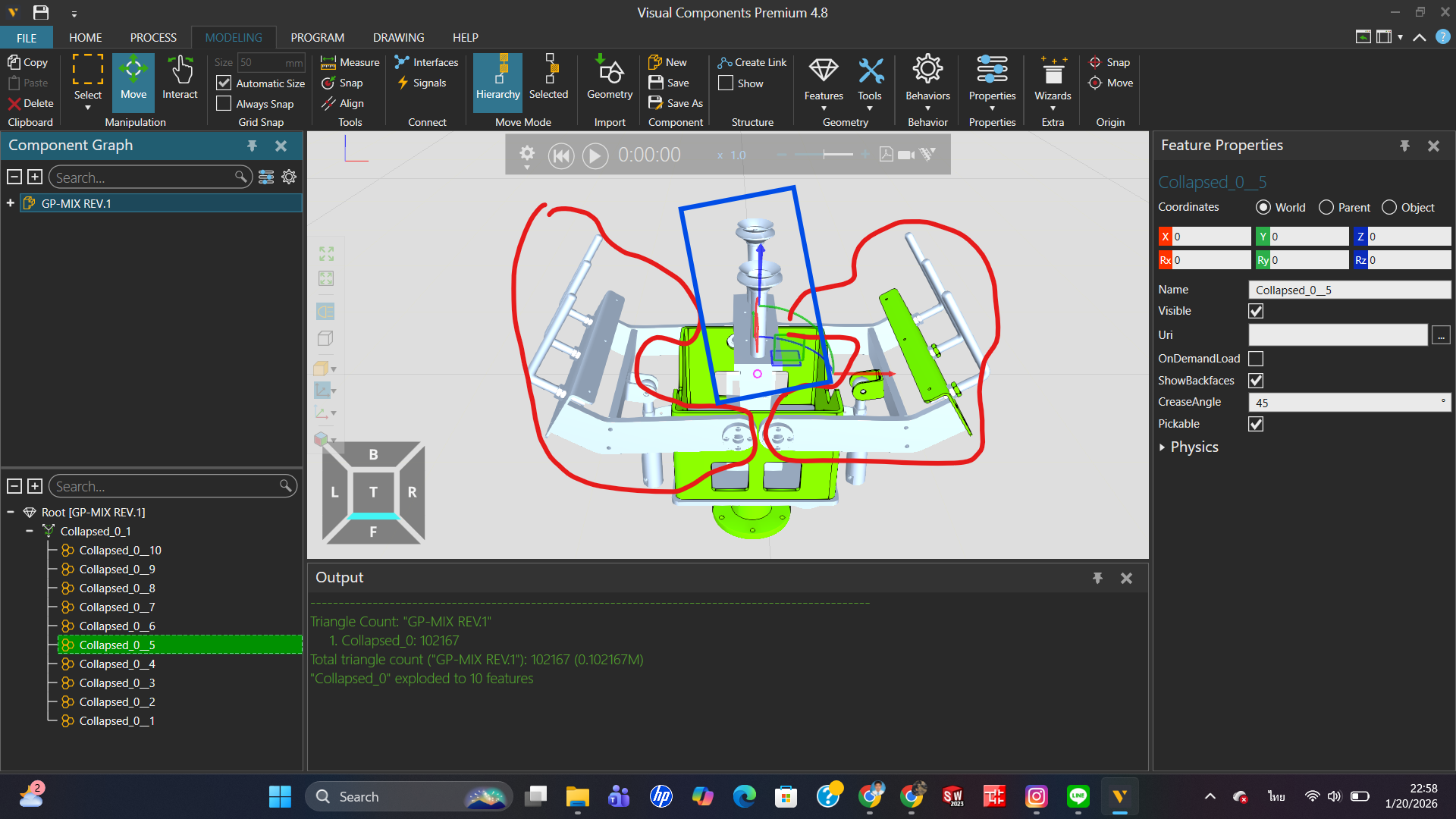
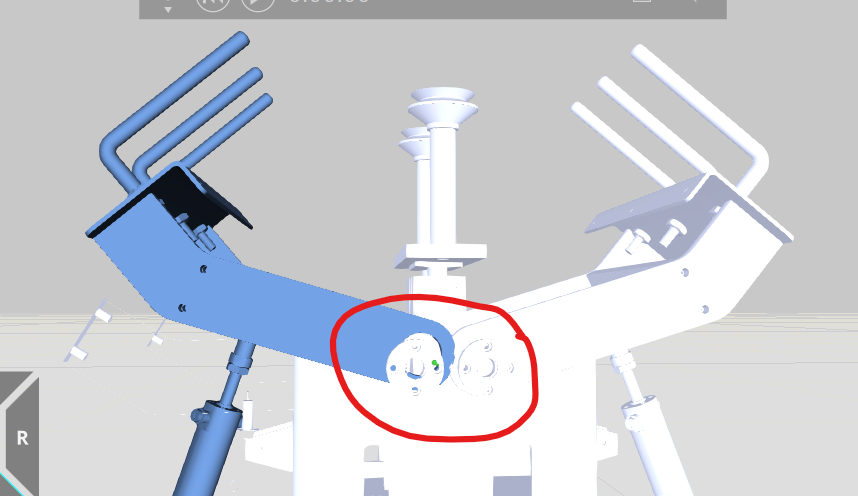
I am currently facing an issue while doingGripper Modeling. After importing my CAD file into the software, when I try to select thelinks or jointsthat should move, the program does not recognize them as asingle link, but instead treats them as separate parts.

Because of this, I am not sure how to set up or organize the model structure so that the software recognizes these parts as one link.

Please see the attached image for more details.

When the grippers close (the two red-circled points), the center part (the blue-circled point) moves upward. When the grippers open (the two red-circled points), the center part (the blue-circled point) extends downward.

I would like to kindly ask all experts who read this topic for your advice and guidance. Thank you very much.

Hello, Bobby,

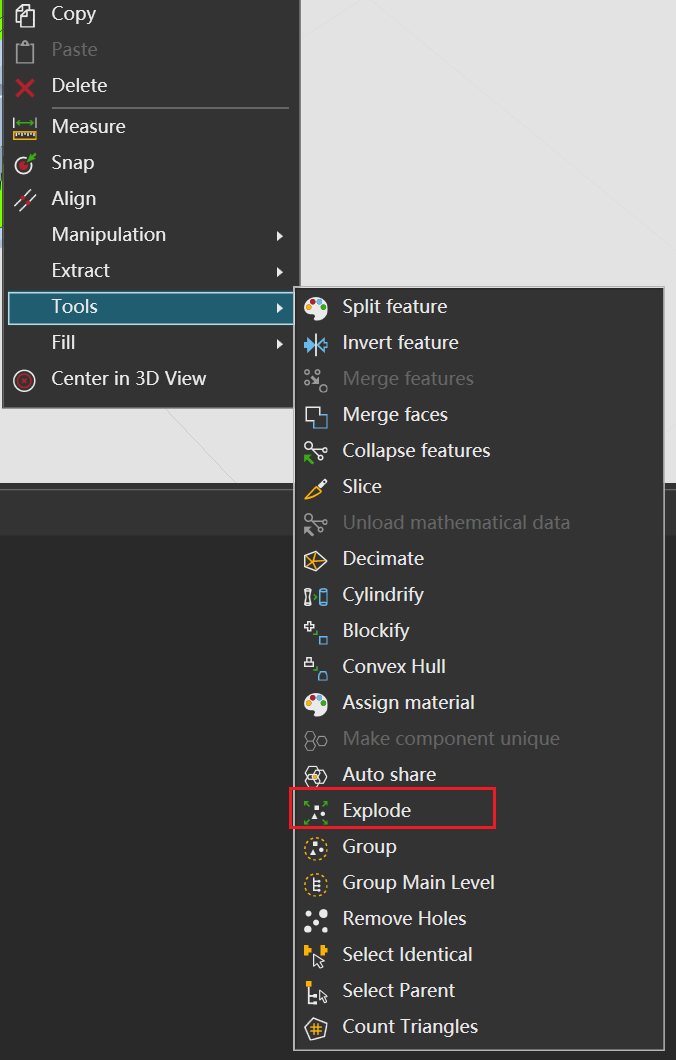
I didn’t quite understand what your main question was, so let’s go through them one by one. Because VC is different from other CAD modeling software, it’s more oriented towards software similar to visual effects (in terms of operational principles). So, general models that enter VC need to undergo CAD conversion. Any dependencies or issues that arise during modeling or conversion can be attributed to being outside the model. At this point, you can try the Explode option from the right-click menu, and the program will attempt to break the model down into more features. Of course, this method doesn’t always work, so it’s still important to pay attention to modeling habits.


Then regarding the coupling relationship you mentioned, you can try using a driven relationship when setting up the link joint to achieve this.

Hope this helps.

2 Likes

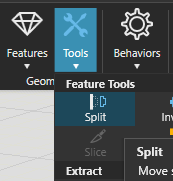
Good answer@BAD. Also the Split tool is handy for separating a few specific geometries from a larger geometry feature: select Split and click on objects from the 3D world that you would like as a separate geometry feature.
你好, 从你的描述和图片来看,你希望将多个几何对象合并为一个单一的连杆(link),但使用“分解”(Explode)功能后,软件仍然无法将它们识别为一个整体。这通常是因为分解操作会将组合对象拆分为独立的几何体,而不是将它们合并。 要解决这个问题,你可以尝试以下方法: 1. **使用“合并”(Combine)或“布尔运算”(Boolean Union)功能**: 在大多数CAD软件中,你可以通过布尔运算(如“并集”)将多个独立的几何体合并为一个单一实体。具体操作步骤可能因软件而异,但通常可以在“修改”或“编辑”菜单中找到相关选项。 2. **创建组件或装配体**: 如果软件支持,你可以将多个几何体组合成一个组件(Component)或装配体(Assembly),然后将其定义为一个连杆。这样,软件会将它们视为一个整体进行运动模拟。 3. **检查几何体是否完全连接**: 确保所有几何体之间没有间隙或重叠问题。如果几何体未完全接触,合并操作可能会失败。你可以使用“修复几何”工具检查并修正问题。 4. **使用“分组”(Group)功能**: 某些软件允许将多个对象分组,使其在运动模拟中作为单一对象处理。虽然这不是真正的几何合并,但可能满足你的需求。 5. **参考教程中的方法**: 你提到的机器人夹爪教程可能提供了更具体的操作步骤。建议重新查看教程,确保你正确设置了连杆的关节类型(旋转关节而非平移关节)和位置(旋转轴位置)。 如果你能提供更多关于所用软件的信息(例如:SolidWorks、Fusion 360、Visual Components等),我可以给出更具体的指导。希望这些建议能帮助你解决问题!

@bobby_RMUTTO67, you might have seen this tutorial already, but this one guides through modeling a robot gripper:Model a Robot Gripper – Part I | Visual Components Academy
Only difference is that now the gripper’s moving links should have joint type Rotational instead of Translational, and the links’ position must be where the rotational axes are, so that the links rotate around the correct axis.

3 Likes

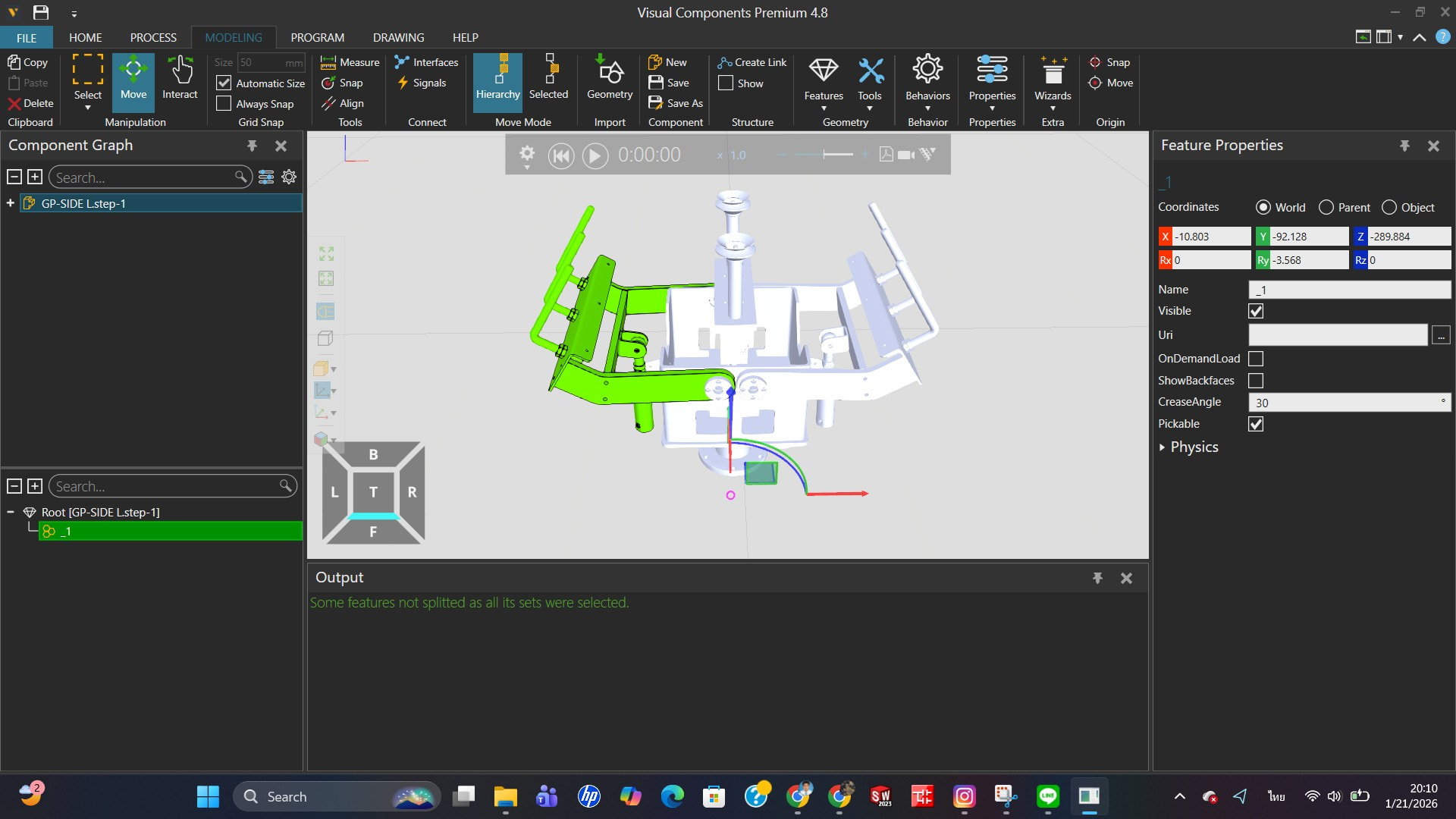
Hello,@BADI have already tried using the Explode function, but the software still does not recognize the parts as a single link. I would like the program to treat them as one link,The desired result is shown in the image. Thank you for your answer. I would appreciate your further help. Thank you.

Hello好的,Bobby, 我已经看过这个教程视频,但当我尝试跟着操作时,我的结果和视频里的不一样。我以前从未使用过“分割”命令,但我会试着用一下。 谢谢你的回答。我很感谢你的帮助,非常感谢。 我先补充一下之前回复的内容。当某个不应被视为特征的组件被错误地识别为特征时,可以使用这种分离技术。我注意到你提到想把多个元素当作一个整体来处理——要合并多个原本不是统一特征的元素,你可以使用“合并特征”功能,这个功能也在我之前展示的右键菜单里。另外,你可以对已移动的特征使用“折叠”功能,将其合并成一个单一特征。需要注意的是,几何元素特征和可调整的参数化特征(例如正方形、圆形等)不能直接用“合并特征”功能合并。你需要先用“折叠”功能将参数化特征转换为几何元素特征,然后再进行合并。 以上是我对你关于“将元素视为一个整体”这个问题的回答。我不确定这是否完全满足了你的需求,但我可以确认这个方法是有效的。 (我现在是在床上写这条消息,因为我准备睡觉了。如果这不能完全解决你的问题,你可能需要自己探索其他解决方案,或者等待其他人的回复。)I have already watched this tutorial video, but when I tried to follow it, my result was not the same as in the video. I have never used the Split command before, but I will try using it.
Thank you for your answer. I would appreciate your help. Thank you very much.

Okay, Bobby,

I’m writing this message in bed because I’m ready to turn in for the night. If this doesn’t fully resolve your issue, you might need to explore solutions on your own or wait for replies from others.

First, let me add a supplement to my previous response. That method is a separation technique used when a component that shouldn’t be treated as a feature is incorrectly identified as one. I noticed you mentioned wanting to treat multiple elements as a single entity—to merge multiple features that weren’t originally a unified feature, you can use the Merge Features function, which is also located in the right-click menu I showed you earlier. Additionally, you can use Collapse on a moved feature to consolidate it into a single feature. Note that geometric element features and adjustable parametric features (such as squares, circles, etc.) cannot be merged directly using Merge Features. You need to first convert parametric features into geometric element features via Collapse before proceeding with the merge.

This is my response to your question about “treating elements as a single entity.” I’m not sure if it fully addresses your needs, but I can confirm that this method is effective.

顺便说一下,生成链接时同样使用右键菜单——但它不在“工具”子菜单下,而是位于“提取”选项中,即“提取为链接”。

晚安,希望这对你有帮助!

1 个赞

我现在开始取得更好的进展了。谢谢你的建议。

如果我没理解错你的问题,你不需要把运动部件合并成一个几何特征。几何体可以保持多个部分,关键在于所有需要一起运动的部件都放在同一个关节下。

使用分解切割功能将CAD模型拆分成需要的部分。然后选中应该一起运动的部件并提取为链接。该链接下的所有部件将作为一个整体运动。

从你的图片来看,你可能需要将左右夹爪部分设为两个独立的链接。然后对其中一个链接应用旋转跟随器,这样两侧就能保持同步运动。

**2 个赞** **bobby_RMUTTO67** 2026年1月22日 上午9:17 **9** (图片) 858×496 70.9 KB ็้้Hello @mkittell 谢谢你的解释。我希望这个枢轴点能保持在这个轴承内,不要移出去。接下来我该怎么做? **BAD** 2026年1月22日 上午9:56 **10** 为链接设置正确的原点(使用吸附和移动模式中的"选中项"模式) (图片) 1096×600 41.5 KB **2 个赞** **mkittell** 2026年1月22日 下午12:54 **11** @bobby_RMUTTO67 BAD说得对,希望这能帮你提供更多背景信息。 **2 个赞** **bobby_RMUTTO67** 2026年1月22日 下午4:26 **12** 谢谢你的解释,也谢谢你花时间帮忙。大家真的帮了我很多。非常感谢。 (图片) 620×467 46.2 KB **1 个赞**

็้้Hello@mkittellThank you for the explanation. I would like the pivot point to stay within this bearing and not move out of it. What should I do next?

Set the correct origin for the link (using snap and Move Mode’s Selected mode)

2 Likes

@bobby_RMUTTO67BAD has it right, hopefully this helps give a bit more context.

2 Likes

Thank you for the explanation and for taking the time to help. Everyone has really helped me a lot. Thank you very much.

1 Like

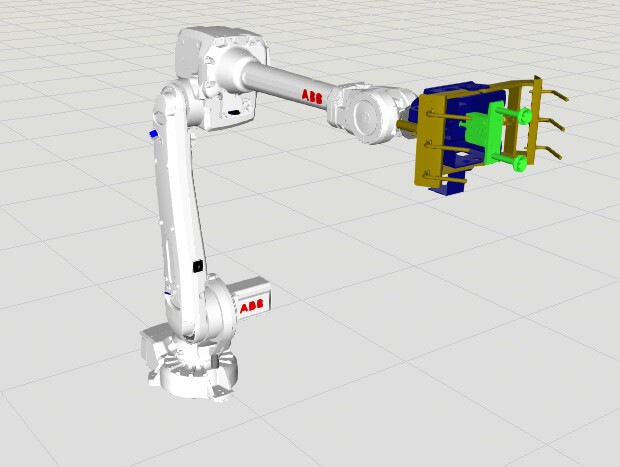
Hello@mkittell @KustiH @BAD

GPsimRev.1.vcmx(1.2 MB)

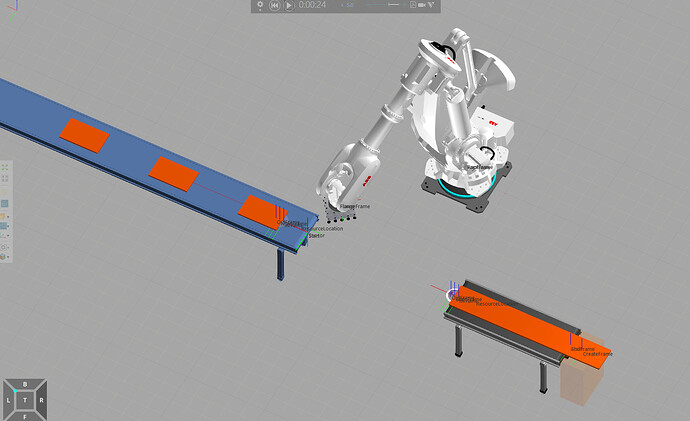
What do I need to do to make the vacuum gripper work? Right now, it cannot pick up the part.

hi,bobby_RMUTTO67,

In the robot properties, find Action and set the port you use to 100. Generally speaking, the first several points (1 to 60 or 1 to 88?) of robots in the library are default settings. You can check this part, of course, these are all in Academy. You can refer to this link (though it’s quite old):